How to Convert Canva Designs to Zenler for High-Converting Lead Magnets: A Complete Guide
 David Zenler
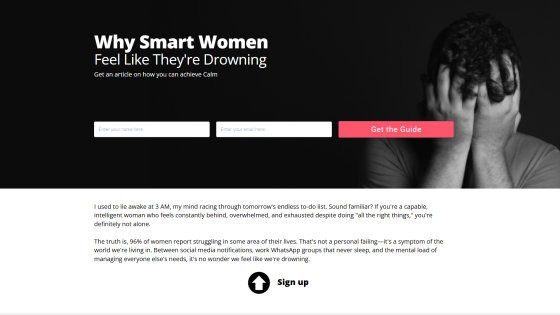
Learn practical marketing and funnel lessons from How to Convert Canva Designs to Zenler for High-Converting Lead Magnets: A Complete Guide, with guidance for attracting leads and selling online courses more clearly.
Are you struggling to create professional-looking lead magnets for your online business? Learn how to leverage Canva's design capabilities and Zenler's powerful page builder to transform existing blog content into stunning lead magnets that convert. This comprehensive guide walks you through the entire process, from design to deployment.
Quick answer: How to Convert Canva Designs to Zenler for High-Converting Lead Magnets: A Complete Guide explains how to are you struggling to create professional-looking lead magnets for your online business? leverage Canva's design capabilities and Zenler'.
Table of Contents
- Why Convert Blog Content to Lead Magnets
- Understanding the Canva to Zenler Workflow
- Step-by-Step: Creating Your Lead Magnet in Canva
- Importing and Assembling in Zenler
- Advanced Zenler Techniques for Lead Magnets
- Mobile Optimization Best Practices
- Content Repurposing Strategies
- Setting Up Your Lead Magnet Funnel
- Common Mistakes to Avoid
- Frequently Asked Questions
Why Convert Blog Content to Lead Magnets
The Power of Content Repurposing
Creating original content from scratch is time-consuming and expensive. If you've already written comprehensive blog posts, you're sitting on a goldmine of potential lead magnets. The key is understanding how to repackage that content in visually appealing, easily digestible formats.
Benefits of converting blog posts to lead magnets:
- Maximize existing content investment - You've already done the hard work of research and writing
- Reach different learning styles - Visual learners prefer designed content over plain text
- Increase conversion rates - Professional design builds trust and authority
- Speed up production - Designing in Canva is faster than writing from scratch
- Test multiple formats - One blog can become an email series, PDF, or landing page
Why Canva and Zenler Work Together Perfectly
Canva provides intuitive design tools that anyone can use, while Zenler offers a robust platform for hosting, delivering, and automating your lead magnets. This combination allows course creators and online entrepreneurs to produce professional results without hiring designers or developers.
Understanding the Canva to Zenler Workflow
The Complete Process Overview
The workflow consists of three main phases:
- Design Phase - Create visual elements in Canva
- Export Phase - Download individual components as transparent PNGs
- Assembly Phase - Rebuild the design in Zenler with full responsiveness
This approach gives you pixel-perfect control while maintaining the flexibility to optimize for different devices and screen sizes.
Why Not Just Upload a PDF?
While PDFs are common lead magnets, building your content directly in Zenler provides several advantages:
- Full mobile responsiveness - Content automatically adapts to any screen size
- Better user experience - No downloads required, instant access
- Tracking capabilities - Monitor engagement and user behavior
- Dynamic content options - Personalize content for different audiences
- Integration with funnels - Seamlessly connect to your marketing automation
Step-by-Step: Creating Your Lead Magnet in Canva
Setting Up Your Canvas Dimensions
Start by creating the right foundation for your design:
Recommended canvas size: 1920 x 1920 pixels (square format)
Why use a square canvas? This format provides flexibility for cropping and ensures your content works across multiple platforms. If you're creating a longer lead magnet with multiple sections, consider going taller (1920 x 2400 or even 1920 x 3000).
For standard lead magnets: 1920 x 1080 pixels works well for single-page designs.
Designing Your Lead Magnet Cover
Your cover is the first impression, so make it count:
- Choose a dramatic, relevant image - Select visuals that grab attention and relate to your content
- Add a compelling headline - Use clear, benefit-driven language
- Include branding elements - Add your logo, brand colors, and fonts
- Create visual hierarchy - Make the most important information stand out
Pro tip: Don't feel obligated to use the same cover image as your blog post. Create something unique that stands out in inboxes and on landing pages.
Breaking Down Content into Sections
Transform your blog content into scannable, visually appealing sections:
Section 1: Introduction
- Welcome message
- Brief overview of what they'll learn
- Set expectations
Section 2: Main Content
- Break long paragraphs into bullet points
- Add icons or graphics to illustrate key points
- Use subheadings liberally
- Include pull quotes or statistics in callout boxes
Section 3: Action Items
- Provide clear next steps
- Include a call-to-action
- Link to additional resources
Design Best Practices for Lead Magnets
Typography:
- Use no more than 2-3 fonts throughout
- Ensure text is large enough to read easily (minimum 16pt for body text)
- Maintain consistent line spacing
- Leave plenty of white space
Color Scheme:
- Stick to your brand colors
- Use contrast to make text readable
- Avoid busy backgrounds behind text
- Consider accessibility for color-blind users
Visual Elements:
- Use high-quality images (avoid pixelation)
- Add icons to break up text and illustrate concepts
- Include shapes and dividers to separate sections
- Maintain consistent styling across all elements
Creating Individual Design Elements
Here's where the Canva to Zenler workflow shines. Instead of creating one massive design, create individual components:
Header section:
- Full-width background image or color
- Headline text
- Subheading
- Any decorative elements
Content sections:
- Text blocks
- Supporting images
- Icons
- Callout boxes
- Dividers
Footer section:
- Call-to-action
- Social media icons
- Contact information
- Branding
Exporting Your Designs
This is crucial for the Zenler assembly process:
- Select the element you want to export
- Click "Share" in the top right
- Choose "Download"
- Select PNG format
- Check "Transparent background" (very important!)
- Download each component separately
Naming convention tip: Use descriptive names like "lead-magnet-header.png," "section-1-text.png," "cta-button.png" to stay organized.
Importing and Assembling in Zenler
Understanding Zenler's Page Builder
Zenler operates on a grid-based system that provides pixel-perfect positioning. While it might seem less freeform than Canva, this structure actually makes your designs more reliable across different browsers and devices.
Setting Up Your Lead Magnet Page
- Create a new page in your Zenler account
- Choose "Blank page" as your starting template
- Set your page width (recommended: full width for maximum impact)
- Configure your background (solid color, gradient, or image)
The Row and Column System
Zenler uses rows and columns to organize content:
- Rows: Horizontal sections that span the full width of your page
- Columns: Vertical divisions within rows (up to 12 columns available)
Think of each row as a section of your lead magnet (header, content block 1, content block 2, footer, etc.).
Adding Your Canva Elements to Zenler
1 Create Your Structure
- Add a row for each major section
- Set row padding and margins
- Configure background colors or images for each row
2 Upload Images
- Click on a column where you want to add an element
- Select "Image" block
- Upload your transparent PNG from Canva
- Adjust the image width (percentage or pixels)
3 Position Elements
Here's where Zenler's power becomes apparent:
- Margin controls: Space around the outside of elements
- Padding controls: Space inside elements
- Negative margins: Pull elements outside their normal position for overlapping effects
You can adjust positioning down to the pixel level:
- Top margin: Move elements up or down
- Left margin: Move elements left or right
- Use negative values to create overlapping designs
Creating Overlapping Elements
One of the most powerful techniques for replicating Canva designs:
- Place your background element first
- Add a new image block in the same column
- Use negative top margin to pull the second element up
- Fine-tune with left/right margins
- Adjust the z-index if elements aren't layering correctly
Example: Overlapping text on an image
- Image at the top of a column
- Text block with -100px top margin (pulls it up into the image)
- Add padding to the text for breathing room
Working with Text Blocks
While you can design all text in Canva and import as images, using Zenler's text blocks offers advantages:
Benefits:
- Better for SEO (search engines can read it)
- Easier to edit and update
- Faster page load times
- Accessible to screen readers
When to use image text:
- Decorative headlines with special fonts
- Text with complex effects or styling
- Text integrated into graphic elements
Cropping Images in Zenler
Zenler includes a built-in image cropper, perfect for adjusting your Canva exports:
- Click on an image in your design
- Select the crop icon (usually looks like two overlapping corners)
- Drag the crop handles to adjust
- Choose your crop ratio or use custom dimensions
- Apply the crop
This is especially useful when you've created larger designs in Canva and need to adjust them to fit specific sections.
Advanced Zenler Techniques for Lead Magnets
Custom CSS for Pixel-Perfect Design
For those comfortable with CSS, Zenler allows custom styling:
/* Add rounded corners to images */
border-radius: 15px;

/* Create shadow effects */
box-shadow: 0 4px 6px rgba(0,0,0,0.1);

/* Adjust opacity for overlays */
opacity: 0.9;
Access custom CSS by clicking on an element and finding the "Custom CSS" option in the settings panel.
Using Background Images Strategically
Full-width background images create dramatic impact:
- Add a row
- In row settings, choose "Background"
- Upload your Canva-designed background
- Set background size to "cover" for full-width effect
- Adjust background position (top, center, bottom)
- Add a color overlay if needed for text readability
Creating Button CTAs
While you can design buttons in Canva, Zenler's button blocks offer functionality:
Button block advantages:
- Click-through tracking
- Easy link updates
- Hover effects
- Mobile optimization
Design tip: Create a button background in Canva, then use it as a button background image in Zenler for the best of both worlds.
Form Integration
If your lead magnet includes a form (for additional data collection or next steps):
- Add a form block in Zenler
- Customize fields
- Style to match your design (background colors, fonts, button colors)
- Connect to your email service provider
- Set up automation rules
Mobile Optimization Best Practices
Understanding Responsive Design in Zenler
One of Zenler's most powerful features is device-specific visibility controls. You can show or hide elements based on screen size.
The Hide-on-Desktop and Hide-on-Mobile Feature
This allows you to create completely different layouts for mobile users:
The strategy:
- Design your desktop version first
- Duplicate problematic rows/columns
- On the original: Select "Hide on mobile"
- On the duplicate: Select "Hide on desktop"
- Adjust the mobile version for smaller screens
When to use this:
- Text that's too small on mobile
- Images that don't scale well
- Complex layouts that need simplification
- Different CTAs for different devices
Mobile-First Design Considerations
Text size:
- Minimum 18px for body text on mobile
- Larger headlines (24px+)
- Increased line height for readability
Touch targets:
- Buttons should be at least 44px tall
- Adequate spacing between clickable elements
- Larger form fields
Image optimization:
- Use appropriately sized images for mobile
- Consider vertical layouts instead of horizontal
- Reduce the number of images on mobile for faster loading
Testing Your Mobile Design
Always preview your lead magnet on actual devices:
- Use Zenler's preview mode
- Select mobile view in the builder
- Test on physical devices (phone, tablet)
- Check on different screen sizes
- Test all links and buttons
Managing Blocks Across Devices
Zenler provides a block management panel where you can:
- See all blocks on your page
- Toggle visibility settings
- Identify hidden blocks
- Reorder elements
- Delete unused blocks
Access this through the layers/blocks panel on the left side of the editor.
Content Repurposing Strategies
From One Blog Post to Multiple Lead Magnets
Don't limit yourself to a single lead magnet format. One well-written blog post can become:
Email Series:
Break your blog into 3-5 daily emails, each focusing on one section. Add a Canva-designed header image to each email.
Downloadable PDF:
Design the full guide in Canva, export as PDF, offer as a download on a Zenler landing page.
Video + Workbook:
Record a video walking through the content, create a companion workbook in Canva, host both in Zenler.
Infographic:
Extract key statistics and tips, design a shareable infographic in Canva, host on a Zenler page.
Social Media Series:
Break content into bite-sized graphics for Instagram, LinkedIn, or Facebook using Canva templates.
The Drip Content Approach
Instead of giving away everything at once:
- Day 1: Welcome email with introduction and part 1
- Day 2: Part 2 with a case study or example
- Day 3: Part 3 with action items
- Day 4: Bonus content and pitch for paid product
This approach:
- Increases engagement
- Keeps your brand top-of-mind
- Builds anticipation
- Creates multiple touchpoints
- Higher conversion rates for paid offers
Using Existing Course Content as Lead Magnets
If you've already created a course in Zenler:
Identify standalone modules:
- Lessons that work independently
- Introductory content
- Framework or methodology overviews
Repurpose as lead magnets:
- Place the video on a landing page
- Create a Canva-designed worksheet to accompany it
- Gate the content behind an email opt-in
- Use it to warm up leads before pitching the full course
Example workflow:
- Choose a 10-15 minute video from your course
- Create a complementary one-page guide in Canva
- Build a landing page in Zenler with both resources
- Set up an automation to deliver it via email
- Follow up with a sequence promoting your full course
Leveraging User-Generated Content
Don't overlook testimonials, case studies, and student success stories:
Case study lead magnet:
- Interview a successful student or client
- Design a case study in Canva showing their journey
- Include before/after metrics
- Add this to your funnel as social proof
Testimonial compilation:
- Gather your best reviews and testimonials
- Design an attractive compilation in Canva
- Offer as a "success stories" download
- Builds trust with new prospects
Setting Up Your Lead Magnet Funnel
The Complete Automation Workflow
Once your lead magnet is designed and built in Zenler, connect it to your marketing funnel:
1 Landing Page
- Create an opt-in page in Zenler
- Add your Canva-designed hero image
- Include a clear headline and benefits
- Simple form (name and email)
- Strong call-to-action button
2 Thank You Page
- Immediate delivery page
- Show your lead magnet content
- Add a video if you have one
- Include social sharing buttons
- Present your next offer
3 Email Sequence
- Welcome email with access link
- Value-driven follow-up emails
- Gradually introduce your paid products
- Segment based on engagement
4 Retargeting
- Set up pixels on your Zenler pages
- Create custom audiences
- Retarget non-converters with ads
- A/B test different offers
Integration with Email Marketing
Zenler integrates with popular email service providers:
- ActiveCampaign
- ConvertKit
- MailChimp
- GetResponse
- AWeber
Setup process:
- Connect your ESP in Zenler settings
- Create a new list/tag for this lead magnet
- Set up automation rules
- Map form fields to ESP fields
- Test the integration thoroughly
Tracking and Analytics
Monitor your lead magnet performance:
Key metrics:
- Opt-in rate (landing page conversion)
- Open rate (if delivered via email)
- Click-through rate (engagement with links)
- Time on page (content consumption)
- Next-step conversion (paid offer uptake)
Optimization based on data:
- Low opt-in rate? Test different headlines or images
- Low engagement? Break content into smaller chunks
- Poor conversion to paid products? Adjust your offer or sequence
Common Mistakes to Avoid
Design Mistakes
Overdesigning:
More isn't always better. Clean, simple designs often perform better than busy, complex ones.
Ignoring brand consistency:
Your lead magnet should look like it comes from your brand. Use consistent colors, fonts, and imagery.
Poor readability:
If text is hard to read (too small, low contrast, busy background), people won't engage.
Not optimizing images:
Huge file sizes slow down your pages. Compress images before uploading to Zenler.
Forgetting mobile users:
If your lead magnet looks terrible on phones, you're losing conversions.
Technical Mistakes
- Not testing forms: Always test your opt-in forms before launching. Broken forms = lost leads.
- Broken links: Check every link in your lead magnet and follow-up emails.
- Missing tracking pixels: Set up tracking from day one. You can't optimize what you don't measure.
- Slow page load times: Optimize images, minimize custom code, use Zenler's built-in compression.
- Not using transparent PNGs: When exporting from Canva, always use transparent backgrounds for elements you'll layer in Zenler.
Content Mistakes
- Being too salesy: Your lead magnet should provide genuine value, not just be a sales pitch.
- Information overload: Don't dump your entire course into a lead magnet. Give enough to be helpful, not everything.
- No clear next steps: Always include a call-to-action. What should they do after consuming your content?
- Poor copywriting: Even with beautiful design, weak copy won't convert. Focus on benefits, not features.
- Forgetting the offer: Your lead magnet should naturally lead to your paid product. Don't forget to make the connection.
Advanced Tips and Tricks
Speed Up Your Design Process
Create Canva templates:
Once you have a design you like, save it as a template. Duplicate and modify for future lead magnets.
Build a component library:
Save commonly used elements (headers, buttons, dividers) as separate files for quick reuse.
Use Canva Brand Kit:
Set up your brand colors, fonts, and logos once. They'll be available in every new design.
Zenler page templates:
After building your first lead magnet page, save it as a template. Clone it for future projects.
Enhancing User Experience
- Add progress indicators: If your lead magnet is multiple pages, show users where they are in the journey.
- Include a table of contents: For longer lead magnets, add clickable navigation at the top.
- Use anchor links: Link between sections on the same page for easy navigation.
- Add videos: Supplement your designed content with short video explanations for complex topics.
- Interactive elements: Include clickable tabs, accordions, or flip cards to make content more engaging.
A/B Testing Your Lead Magnets
Elements to test:
- Headline variations
- Cover image options
- Content length (longer vs. shorter)
- Delivery method (email vs. instant access)
- CTA placement and wording
How to test in Zenler:
- Create duplicate pages
- Change one element at a time
- Split traffic between versions
- Track conversions
- Implement the winner
Real-World Examples and Use Cases
Example 1: Fitness Coach Lead Magnet
Original content: Blog post about "5 Morning Habits for Weight Loss"
Transformation:
- Created 5 separate Canva designs, one for each habit
- Each design included an icon, headline, and 3 action steps
- Built in Zenler with a cover page and individual sections
- Added a video introduction
- Included a printable daily tracker
Results: 42% opt-in rate, 28% conversion to paid meal planning program
Example 2: Business Consultant Lead Magnet
Original content: Comprehensive blog post on "Creating a 90-Day Business Plan"
Transformation:
- Broke into 3-part email series (30-day sections)
- Designed Canva templates for each phase
- Built worksheet pages in Zenler
- Added progress tracking functionality
- Included calendar integration
Results: 67% email open rate, 34% click-through to consultation booking
Example 3: Course Creator Lead Magnet
Original content: Lesson from existing course on "Setting Up Your First Webinar"
Transformation:
- Extracted the video lesson
- Created Canva-designed checklist companion
- Built landing page with both resources
- Added webinar template download
- Included equipment recommendations with affiliate links
Results: 51% opt-in rate, additional revenue from affiliate commissions
Tools and Resources
Recommended Canva Resources
Canva Pro features worth paying for:
- Brand Kit (save colors, fonts, logos)
- Background remover (create transparent PNGs easily)
- Magic Resize (quickly create multiple sizes)
- Content Planner (schedule social shares)
- Animation (add movement to designs)
Free alternatives:
- Remove.bg for background removal
- Coolors.co for color palette generation
- Google Fonts for typography
- Unsplash/Pexels for free stock photos
Zenler Resources
- Documentation: Zenler's help center includes video tutorials and written guides for every feature.
- Community: Join the Zenler community to see examples, ask questions, and get feedback on your designs.
- Support: Zenler offers customer support to help with technical issues and implementation questions.
Additional Tools
Image optimization:
- TinyPNG (compress images without quality loss)
- Squoosh (Google's image compression tool)
- ImageOptim (for Mac users)
Design inspiration:
- Behance (professional design examples)
- Dribbble (UI/UX design inspiration)
- Pinterest (lead magnet design ideas)
Email marketing:
- ActiveCampaign (advanced automation)
- ConvertKit (creator-focused)
- MailerLite (budget-friendly option)
Related marketing and funnel resources
Build a stronger creator marketing system with these connected Zenler resources:
- Complete course funnel guide for New Zenler
- Lead magnet ideas for course creators
- Online course SEO topic clusters
Frequently Asked Questions
Can I create lead magnets entirely in Zenler without Canva?
Yes, Zenler has built-in design capabilities including text blocks, image blocks, and styling options. However, Canva provides more design flexibility for creating unique graphics, and the combination offers the best results.
Do I need Canva Pro for this workflow?
While Canva Pro offers helpful features like transparent background export and Brand Kit, you can achieve good results with the free version. You'll just need to use a separate tool for removing backgrounds.
How long does it take to create a lead magnet this way?
Once you're familiar with the process, you can create a professional lead magnet in 2-3 hours total: 30 minutes for planning and content organization, 60 minutes for design in Canva, 30-60 minutes for assembly in Zenler, and 30 minutes for testing and optimization.
What file format should I use when exporting from Canva?
Always use PNG format with transparent backgrounds for elements you'll layer in Zenler. For full-width backgrounds, PNG or JPG works fine. Avoid using Canva's PDF export for this workflow.
Can I use this method for creating course materials?
Absolutely! This workflow is perfect for creating course welcome pages, module dividers, worksheets, certificates, and any other course materials that benefit from professional design.
How do I make my lead magnet mobile-friendly?
Use Zenler's hide-on-mobile and hide-on-desktop features to create device-specific layouts. Always test on actual mobile devices before launching.
What's the ideal length for a lead magnet?
Focus on value, not length. A well-designed 3-page lead magnet that solves one specific problem is better than a 50-page document that overwhelms. Aim for content that takes 10-15 minutes to consume.
Should I gate content behind an opt-in or provide instant access?
For cold traffic (people who don't know you), instant access on a thank-you page works well. For warm traffic, you can deliver via email sequence to build the relationship. Test both approaches.
How often should I create new lead magnets?
Create lead magnets strategically for different audience segments or stages of your funnel. Quality over quantity. 3-5 well-designed lead magnets for different purposes is better than 20 mediocre ones.
Can I sell lead magnets created this way?
While most lead magnets are free opt-in offers, you can certainly sell them as low-ticket digital products. Consider bundling multiple lead magnets or adding exclusive bonus content for paid versions.
Next Steps: Implementing Your Lead Magnet Strategy
Week 1: Planning Phase
- Audit your existing content (blog posts, videos, course lessons)
- Identify your best-performing content
- Choose 1-3 pieces to transform into lead magnets
- Map out your funnel (landing page → thank you page → email sequence)
Week 2: Design Phase
- Set up your Canva Brand Kit
- Create your first lead magnet design
- Design all supporting graphics (header, sections, CTA buttons)
- Export all elements as transparent PNGs
Week 3: Build Phase
- Create your landing page in Zenler
- Build your lead magnet content page
- Import and position all Canva elements
- Optimize for mobile devices
- Set up your thank you page
Week 4: Launch Phase
- Connect your email service provider
- Create your email sequence
- Set up tracking and analytics
- Test everything thoroughly
- Launch and promote
Ongoing Optimization
- Monitor metrics weekly
- A/B test different elements
- Gather user feedback
- Iterate and improve
- Create variations for different segments
Conclusion: The Power of Combining Design and Functionality
The Canva to Zenler workflow represents the best of both worlds: beautiful, professional design from Canva and powerful, flexible functionality from Zenler. By mastering this process, you can:
- Create professional lead magnets quickly without hiring designers or developers
- Repurpose existing content to maximize your content investment and reach new audiences
- Build responsive, trackable experiences that work flawlessly on any device
- Automate your lead generation with integrated funnels and email sequences
- Scale your business by creating compelling offers that convert cold traffic into paying customers
The key is to start simple. Choose one blog post, design it in Canva, build it in Zenler, and launch it. Learn from the process, gather data, and iterate. Each lead magnet you create will be faster and better than the last.
Remember, your content is valuable. Don't let it sit unused in a blog archive. Transform it, repurpose it, and use it strategically to grow your email list, build relationships, and increase revenue.
The combination of Canva's design power and Zenler's robust platform gives you everything you need to create lead magnets that actually work. Start implementing this workflow today, and watch your opt-in rates and conversions soar.
About This Guide
This comprehensive tutorial is based on actual workflow demonstrations and real-world implementation strategies from experienced course creators. The methods described have been tested and proven to work for online businesses of all sizes, from solopreneurs to larger course creation businesses.
FAQ
What is the purpose of How to Convert Canva Designs to Zenler for High-Converting Lead Magnets: A Complete Guide?
The purpose is to help course creators attract the right audience, build trust and guide prospects toward a relevant course, membership or offer.
What should a course marketing workflow include?
A strong workflow includes audience clarity, useful content, lead capture, email follow-up, a clear offer and a simple checkout path.
How can Zenler support course marketing?
Zenler supports marketing with pages, funnels, email, checkout, live sessions, communities and connected course delivery.
Copyright © 2026 Zenler. All rights reserved.
Terms | Privacy Policy | Cookie Policy | Support